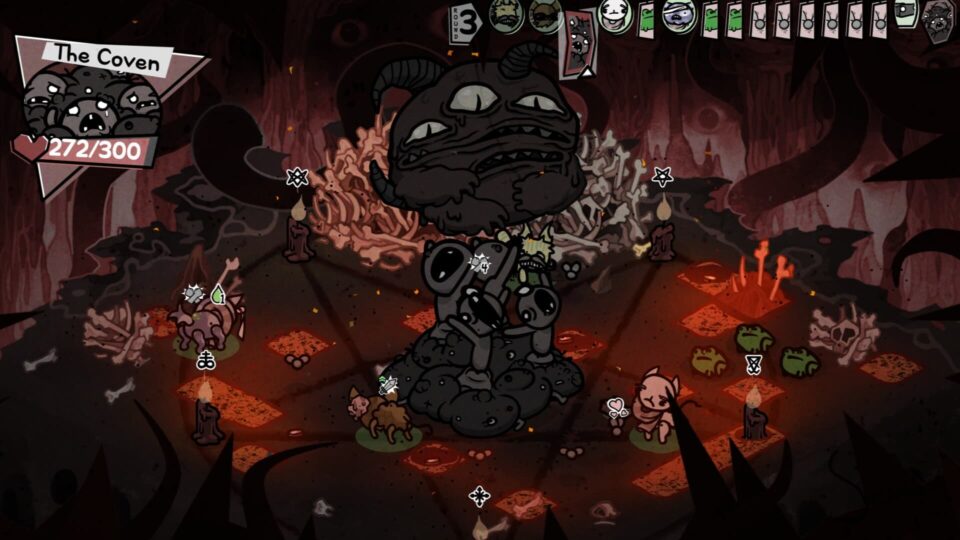
Tame the wild world of Mewgenics modding like a pro using How to Use Mewtator (Mewgenics Mod Manager), the essential utility tool from Nexus Mods that unpacks game resources, enables or disables mods with a click, and launches your customized cat battles without file folder nightmares or manual tweaks. Whether you are a newbie dipping into class mods like Pyromaniac or a veteran juggling quality-of-life tweaks and gameplay overhauls, Mewtator simplifies the entire process for Mewgenics players by handling mod detection, load order adjustments, and seamless integration right from your game directory. This instructional guide walks you through every button click and setup step, ensuring your Mewgenics runs purr with mods like Mage Basic Splash or Unblocked content without crashes or conflicts.
Prerequisites Before Starting
Verify Mewgenics is installed and playable via Steam or your platform of choice. Locate your game directory (usually in Steamapps/common/Mewgenics) since Mewtator needs to live there for proper detection. Download the latest Mewtator version from its Nexus Mods page (mods/1) and extract it directly into that folder—no subdirectories.
Backup your save files first, found in the AppData or game root, to avoid heartbreak from mod mishaps. Disable antivirus temporarily if it flags the executable during setup.
Step 1: Initial Setup And Launch
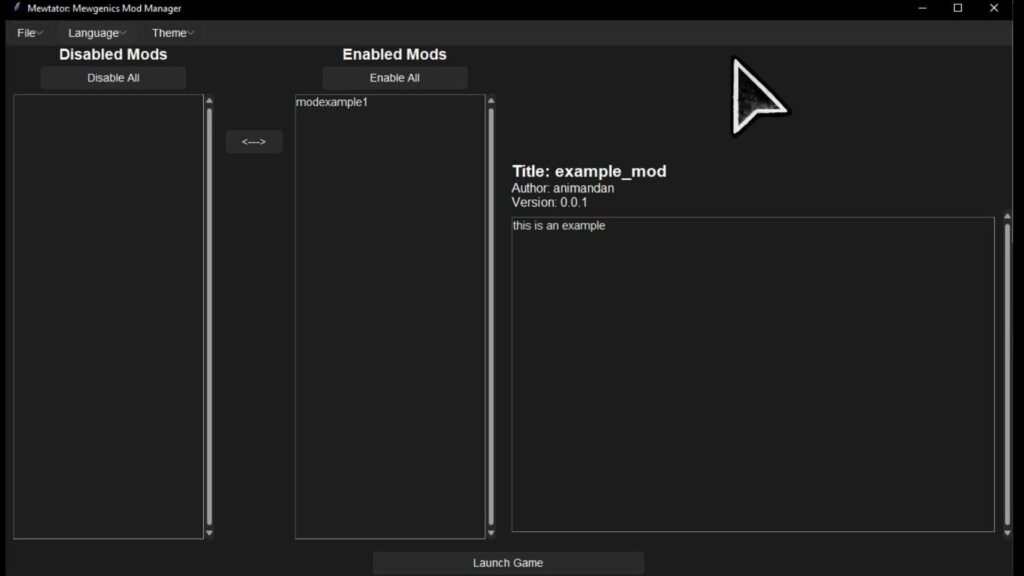
Double-click Mewtator.exe in your Mewgenics folder to start. Select your preferred language from the dropdown, then hit “Setup” when prompted—this unpacks the game’s resource archive automatically for mod compatibility. Confirm the path points to your Mewgenics executable if asked, then let it finish indexing.
The main interface appears with sections for Available Mods, Enabled Mods, and Launch button. Test by clicking Launch without mods; Mewgenics should boot vanilla-style to confirm everything works.
Step 2: Installing Your First Mod
Download any Mewgenics mod (e.g., Mage Basic Splash from mods/154) and extract its files into the “Mods” folder that Mewtator creates. Refresh the interface via the reload button—Mewtator auto-detects new entries in the Available Mods list.
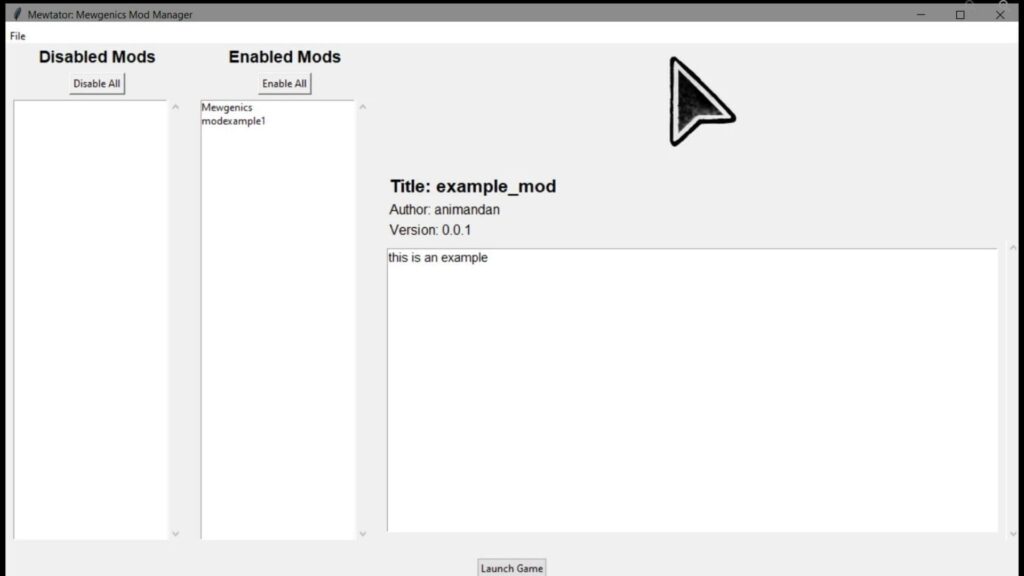
Drag desired mods to Enabled Mods, or use “Enable All” for bulk action. Adjust load order by dragging entries up/down; class mods first, then QoL tweaks. Hit Launch to fire up Mewgenics with mods active—watch for the modded splash effects in your first battle.
Step 3: Advanced Management Features
Toggle individual mods on/off mid-session without restarts using the checkboxes. Create profiles for different setups (e.g., “Unblocked School Play” vs. “Hardcore Class Mods”) via the Profiles menu if available in your version. Monitor the log window for errors like load conflicts, then disable suspects one-by-one.
Update mods by overwriting old files in the Mods folder and refreshing—newer Nexus uploads like Pyromaniac integrate smoothly.
Troubleshooting Common Issues
Mod not detected? Check file extensions match Nexus instructions (.pak or mod folders) and refresh manually. Game crashes on launch? Lower load order complexity or verify unpacked resources via Setup again. Antivirus blocks? Add Mewtator and Mods folder to exceptions list permanently.
Saves incompatible? Start a new run or use community save editors from Nexus. For stubborn errors, check the latest Nexus posts tab on Mewtator’s page for community fixes.
Why Mewtator Beats Manual Modding
Skip messy manual file replacements—Mewtator handles everything in a clean UI built for Mewgenics. Essential for stacking mods like Gameplay Tweaks with Utility Tools without breakage. Regular updates keep it ahead of new Mewgenics patches, making it the community standard.